Anuncios
Lag and low FPS are common problems that disrupt mobile gaming. These issues often result from too many background apps, high graphics settings, outdated software, or insufficient hardware resources. Fixing lag and boosting FPS require optimizing device settings, managing background processes, and adjusting game configurations to ensure smoother gameplay.
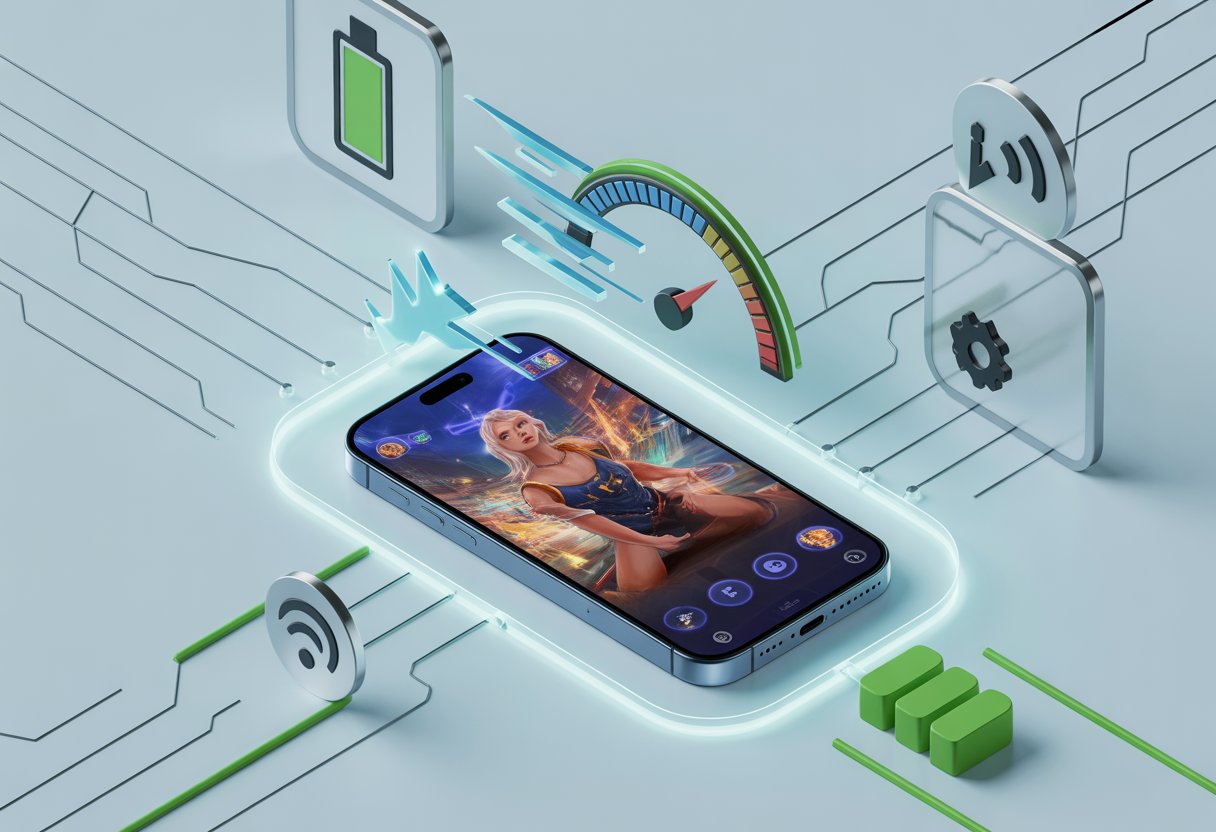
Many gamers experience frame drops and stuttering, especially in demanding titles like PUBG or Call of Duty Mobile. By reducing graphics quality, closing unnecessary apps, and keeping the device updated, players can see immediate improvements in performance without needing advanced tools or rooting the device.
This guide provides straightforward, practical steps to enhance gaming performance on both Android and iOS devices. It covers simple tweaks and effective solutions that anyone can apply to reduce lag and enjoy a more responsive and fluid gaming experience.
Essential Device Settings for Optimal Performance

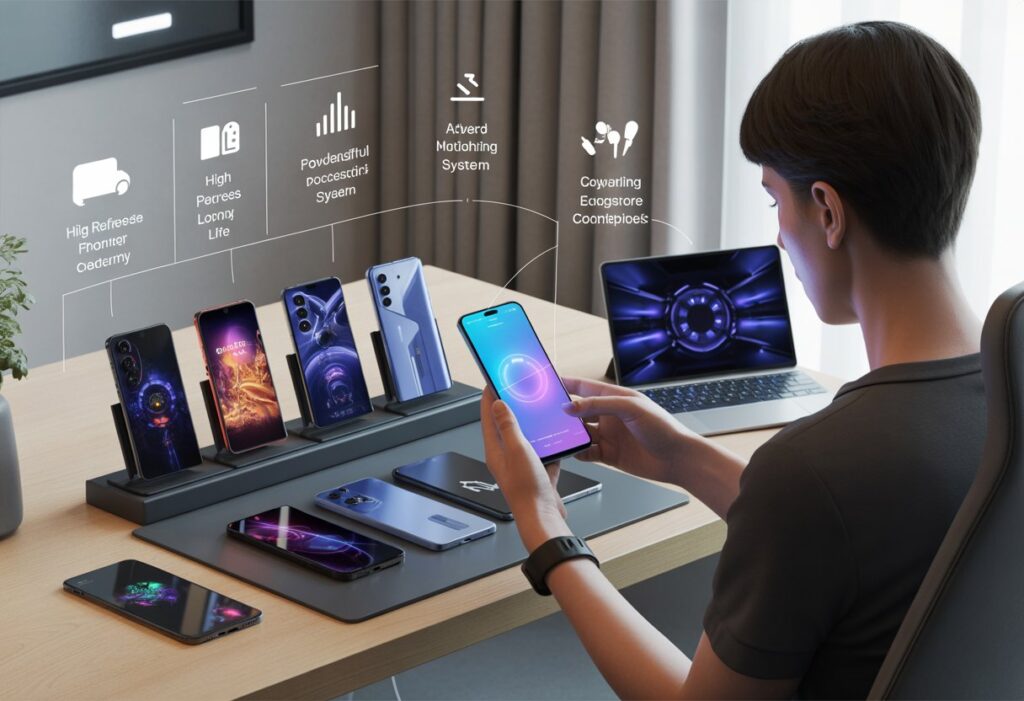
Optimizing mobile device settings can significantly reduce lag and improve FPS during gameplay. Adjustments often involve balancing visual quality with system capabilities while ensuring the device’s resources are dedicated primarily to the game.
Adjust Graphics and Resolution
Lowering in-game graphics settings reduces the strain on the device’s GPU and CPU. Players should set textures, shadows, and effects to medium or low based on their device’s hardware.
Reducing the resolution or switching to a lower display mode helps increase frame rates. Many games allow users to select 720p or even lower resolutions, which improves smoothness without drastic visual degradation.
It is important to test different settings to find a comfortable balance where gameplay feels responsive but still visually acceptable for the player.
Enable Performance or Gaming Modes
Most modern smartphones feature built-in performance or gaming modes. Enabling these modes allocates more system resources like CPU and GPU power specifically to games, prioritizing gameplay over background processes.
These modes often disable unnecessary notifications and limit network usage by background apps, reducing interruptions and lag spikes. Some also optimize the device’s cooling system to prevent overheating during extended sessions.
Activating performance modes can provide a consistent FPS boost without requiring additional hardware changes or apps.
Close Background Apps
Running multiple apps simultaneously consumes RAM and processing power, which directly impacts game performance. Closing all unnecessary background apps frees these resources, reducing lag and stuttering.
Users should check the task manager or app switcher to close apps not in use before starting a game. This prevents sudden slowdowns caused by background activity.
It is also advisable to restrict apps from running in the background via device settings to maintain optimal performance throughout gameplay sessions.
Free Up Device Storage
Low available storage can cause slower read/write speeds and overall device sluggishness. Keeping at least 15-20% of storage free ensures the operating system and games run efficiently.
Deleting unused apps, clearing cache files, and moving media to external storage or cloud services helps maintain sufficient free space.
Regularly monitoring storage helps prevent performance drops caused by insufficient space, especially on devices with limited internal memory.
Network Optimization Techniques

Improving network performance is critical to reducing lag and increasing FPS in mobile games. This involves ensuring a consistent internet connection, adjusting Wi-Fi settings, and minimizing interruptions from other devices or applications.
Switch to a Stable Internet Connection
A stable internet connection reduces packet loss and latency, which are common causes of lag in online games. Players should prefer a wired connection when possible, but for mobile devices, strong Wi-Fi is usually the best option. Avoid using mobile data if the signal is weak or fluctuating, as this leads to inconsistent speeds.
Testing the connection with tools like speed tests and ping tests can reveal issues. If instability persists, switching to a different network or resetting the router can help. Players should also disable VPNs or proxies that can add unnecessary delay.
Optimize Wi-Fi Settings
Optimizing router settings improves connectivity for gaming devices. Placing the router in a central, elevated location reduces obstacles and interference. Using the 5 GHz Wi-Fi band often results in faster speeds and lower latency than the 2.4 GHz band, although its range is shorter.
Enabling Quality of Service (QoS) on the router prioritizes gaming traffic over other activities, minimizing lag during gameplay. Reducing channel interference by selecting less congested channels can also enhance performance, especially in densely populated areas.
Reduce Network Congestion
Heavy use of the network by multiple devices can cause lag and FPS drops. Pausing or limiting bandwidth-heavy activities like streaming videos, downloads, or cloud backups during gaming sessions prevents network congestion.
Using a dedicated gaming Wi-Fi network or setting device priorities in the router settings ensures the gaming device receives maximum bandwidth. Disconnecting unnecessary devices from the network further frees resources for smoother game performance.
Advanced Solutions for Reducing Lag and Boosting FPS
Optimizing mobile game performance often requires steps beyond basic settings. Addressing software updates, clearing unnecessary data, and using specialized apps can improve frame rates and reduce lag significantly.
Update Operating System and Game Software
Keeping the device’s operating system and game software up to date is crucial. Updates often include performance improvements, bug fixes, and optimizations that enhance FPS and stability.
Users should regularly check for system updates in the device settings and game updates via the app store. Ignoring updates can lead to compatibility issues and degraded performance.
Ensuring the OS and game run on the latest versions helps fix known issues that cause lag or crashes. This process also optimizes resource management for smoother gameplay.
Clear Cache and Temporary Files
Accumulated cache and temporary files can slow down the device and impact game performance. Clearing these files frees up storage and reduces background clutter.
Users can clear cache through device settings or via in-game options if available. It’s important to target both the game’s cache and system cache for best results.
Regularly clearing cache prevents stuttering and frame drops caused by insufficient memory or storage fragmentation. This simple maintenance step can improve responsiveness and loading times.
Utilize Game Booster Apps
Game booster apps optimize hardware and system resources specifically for gaming. These apps close background tasks, allocate CPU and RAM efficiently, and adjust settings to prioritize performance.
Many booster apps offer features like network optimization to reduce lag, FPS monitoring, and custom profiles for different games. They can also disable notifications and unwanted processes during play.
Using a trusted game booster app enhances frame rates and reduces interruptions without manual adjustment. It’s particularly useful for low to mid-range devices where resources are limited.
Hardware Upgrades and Long-Term Strategies
Improving performance in mobile games often requires more than quick tweaks. Investing in hardware upgrades, managing heat effectively, and adjusting power settings can sustain smoother gameplay and higher frame rates over time.
Consider Upgrading to a Recent Device
Older mobile devices commonly struggle with newer games due to limited processing power, slower GPUs, and insufficient RAM. Upgrading to a recent smartphone or tablet with a modern chipset ensures better compatibility with demanding game engines.
Devices released in the last 1-2 years usually feature multicore processors optimized for gaming and support faster memory. Look for phones with at least 6 GB of RAM and a GPU designed for graphics-intensive tasks.
Support for technologies like higher refresh rate displays (90Hz or 120Hz) can also improve visual fluidity, reducing motion blur during fast gameplay. Additionally, newer devices often receive frequent software updates that improve game compatibility and performance.
Maintain Device Cooling
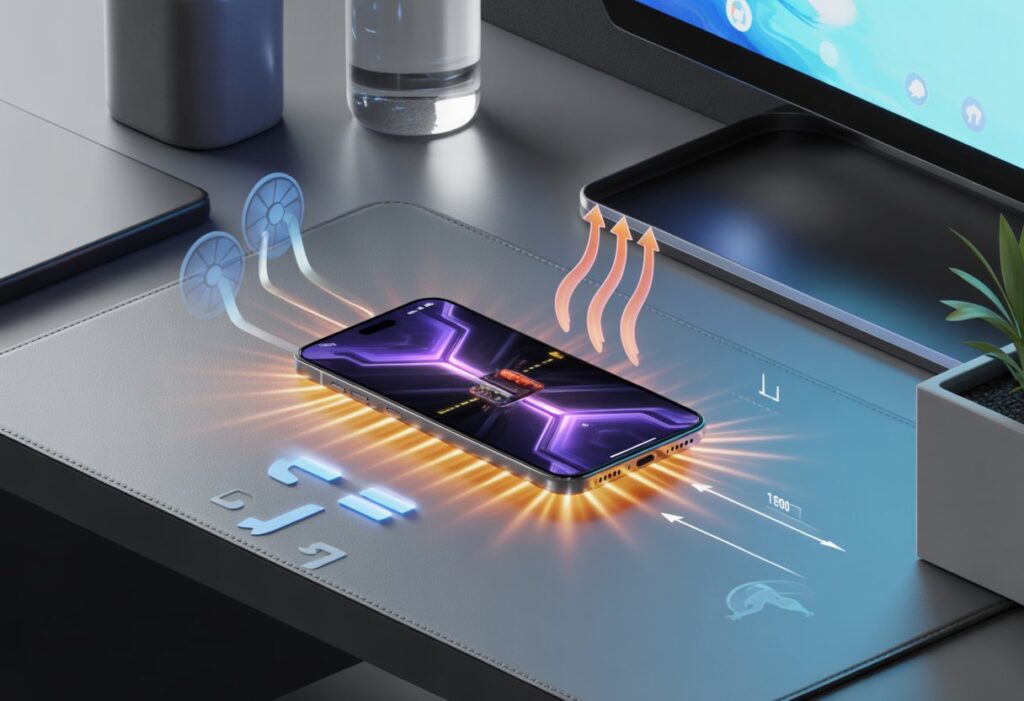
Excess heat can cause the CPU and GPU to throttle performance, resulting in stuttering and frame drops. Effective cooling extends consistent gaming performance without sudden slowdowns.
Users should avoid playing in hot environments or under direct sunlight. Removing bulky phone cases during sessions can improve heat dissipation.
In more intense gaming setups, external cooling accessories such as clip-on fans or cooling pads are beneficial. Many gaming phones include built-in vapor chambers or liquid cooling systems to maintain lower temperatures.
Monitoring temperature through apps helps identify overheating issues before they impact gameplay. Keeping the device cool preserves long-term hardware reliability and performance.
Manage Battery Optimization Settings
Battery optimization protocols on mobile devices often limit background processing and CPU usage to extend battery life. While useful, these restrictions can reduce game performance and cause lag.
Disabling battery optimization or enabling a dedicated game mode allows the processor to run at maximum capacity during play. This adjustment prioritizes performance over battery conservation, preventing throttling.
Players should check app-specific settings to exclude games from battery saver modes. Many devices also offer a “performance mode” that automatically balances power use and speed for improved gameplay.
Maintaining a partially charged battery (around 50-80%) helps avoid aggressive power-saving states that may affect frame rates.